
Cambium cnMaestro - Severing the Cloud Connection on an Existing cnMaestro On-Premises Instance
If you have a cnMaestro On-Premises 3.2.0 or later instance already deployed and connected to a Cloud Anchor account, use these steps to disconnect it and keep it running fully on-premises. You'll need admin access to the cnMaestro web UI.
Disconnect the instance
Go to Administration > Settings > Cloud Connectivity.
Clear the Connect to cloud anchor account checkbox.
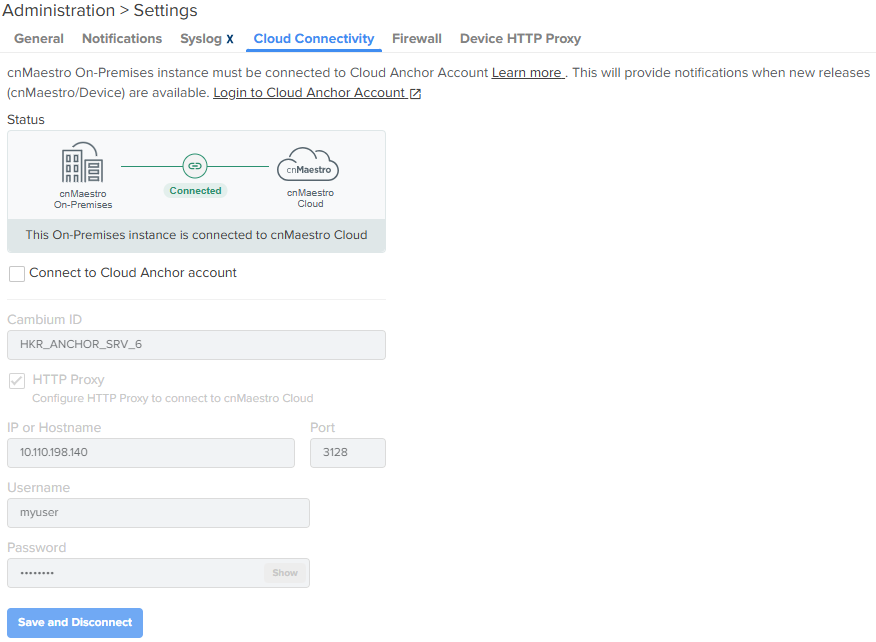
Click Save and Disconnect.
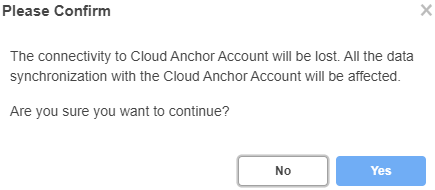
A confirmation window appears — click Yes to continue.
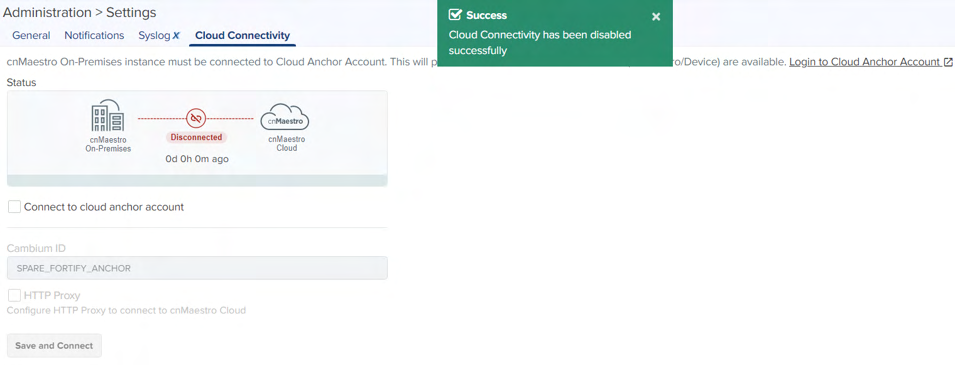
A success message confirms the instance is disconnected.
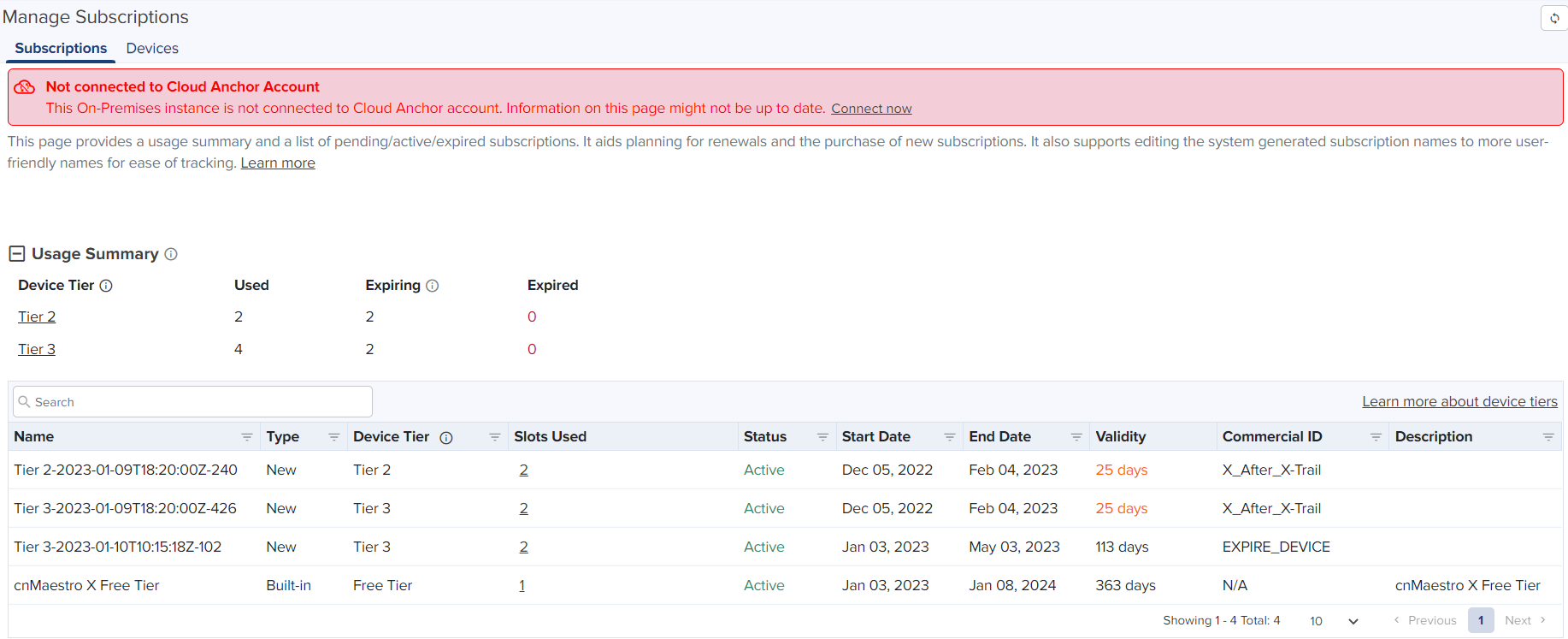
A "Not connected to Cloud Anchor account" banner also appears on the Subscription page.
The instance now shows as offline to the Cloud Anchor account, with no cloud link.
What changes after disconnecting
While disconnected, the instance can't:
Onboard or delete devices (any pending deletions complete once connectivity is restored)
Be deleted itself
Restore device data
Manage subscriptions
Everything else — monitoring, configuration, and day-to-day device management — keeps working normally.
Reconnecting later
If you need to reconnect later, go back to Administration > Settings > Cloud Connectivity, re-enter the Cambium ID and Onboarding Key for the Cloud Anchor account, and click Save and Connect. It can take up to 15 minutes to reconnect.