Cambium cnMaestro - Redirect AP from cloud to on-premises cnMaestro
Use cnMaestro Cloud to point cnPilot APs at your on-premises cnMaestro automatically, without configuring each AP by hand. This works even at sites where you can't change the DHCP settings.
If you're moving your whole network from cnMaestro Cloud to On-Premises, start with Cambium cnMaestro - Migrating from cnMaestro Cloud to cnMaestro On-Premises. This article covers redirecting individual cnPilot APs.
How it works
An on-premises cnMaestro is normally found through DHCP options 15, 43 or 60, but at remote sites, such as those on a home broadband router, you often can't set these. Instead, cnMaestro Cloud sends the APs a small configuration change pointing them at your on-premises server. The APs then disconnect from the cloud and join your on-premises cnMaestro.
Prerequisites:
cnPilot APs on firmware 3.11.2 or later
The APs are claimed, in an AP group and showing as online in cnMaestro Cloud
An on-premises cnMaestro that the APs can reach, and its IP address or hostname
Redirecting the AP(s)
Step 1: Add the redirect to the AP group
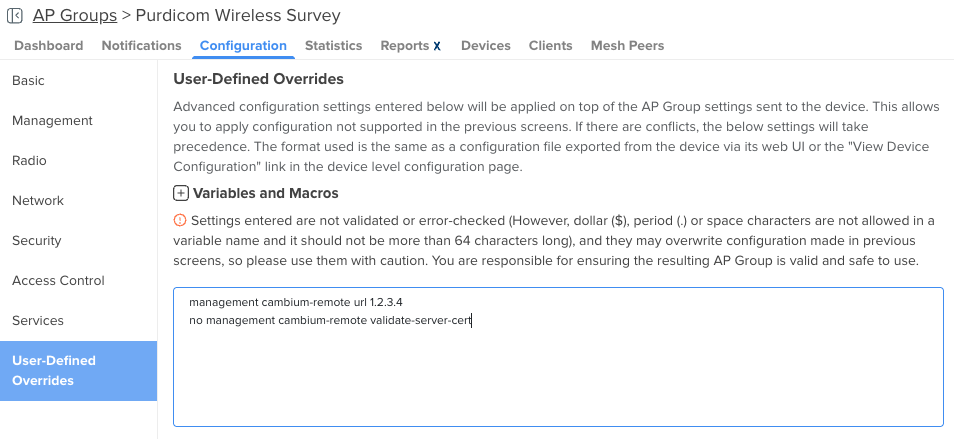
In cnMaestro Cloud, open the AP group's configuration, go to "User Defined Overrides" and enter the commands below. Replace 1.2.3.4 with the IP address or hostname of your on-premises cnMaestro. Save the change, and the APs in the group pick it up and reconnect to your on-premises cnMaestro. This usually takes a few minutes.
management cambium-remote url 1.2.3.4
no management cambium-remote validate-server-cert
Only include the second line if your on-premises cnMaestro uses a self-signed certificate. If it has a trusted certificate, leave the line out so the APs still check they're talking to the right server.
Step 2: Approve the APs on-premises
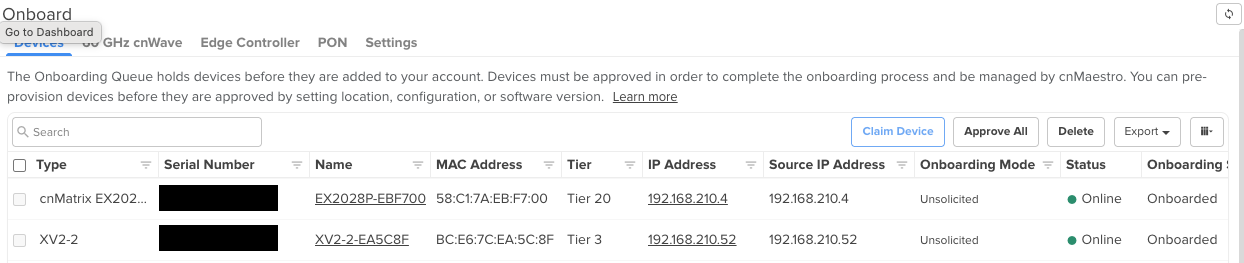
In your on-premises cnMaestro, check the APs appear under Onboard. If they're waiting in the onboarding queue, approve them. The APs now show as online on-premises and offline in cnMaestro Cloud.